

ASYPX is the Cook Islands online visa and permit system. Every visa and permit application goes through it.
What you can do in ASYPX
- Create an account and apply for a visa and permit
- Upload your supporting documents
- Pay the application fee
- Track where your application has got to
Before you start
Check which visa and permit you need, and what it costs, on the Visas and permits. A stay of six months or more also needs a medical clearance letter from the Cook Islands Ministry of Health.
Questions about an application: visapermit@mfai.gov.ck or +682 29 347, option 1.
Prepare your supporting documents
How to prepare and upload your documents
Guide to Uploading Files to Asypx
Tip for file compression and converting to PDF.
All documents uploaded into Asypx must be in PDF format and have a maximum file size of 680kb. Follow this step-by-step guide to convert your files to PDF and reduce their size.
Step-by-Step Instructions
Go to the following website: https://online2pdf.com/#
Step 1: Drag and drop your files one by one into the field labelled “SELECT FILES” or click “SELECT FILES” to search your hard drive for the required files.
Step 2: In the grey bar below the files, click on “MODE” and select “Convert files separately.”
Step 3: Go to the “Convert to” field and select “PDF file (*.pdf).”
Step 4: Select “Compression.”
Step 5: In the “Resolution of images” section, change the selection to “96 dpi (low resolution).”
Step 6: Go to “Filename after conversion” and type in a name for the folder containing the converted files.
Step 7: Click the “Convert” button.
Step 8: The files will be converted individually to PDF format with a smaller file size. They will be saved in your download folder as “thefilename.zip.”
Step 9: You can now upload the converted files into Asypx.
If you have any questions or need assistance, please contact Cook Islands Immigration.
Disclaimer: The information provided on this webpage is intended to assist users in converting and uploading files to the Asypx system. While we strive to ensure the accuracy and reliability of the instructions and tools mentioned, users are advised to verify the compatibility and security of third-party tools like Online2PDF. The Ministry of Foreign Affairs and Immigration (MFAI) is not responsible for any data loss, security issues, or errors that may arise from using these tools. By proceeding, users agree to take full responsibility for their file conversions and uploads.
Common questions
View all 21 related answersWhy am I receiving this error message "DB-SERVER-DB-ERROR"?
If you see the following error message when trying to save or submit an application.
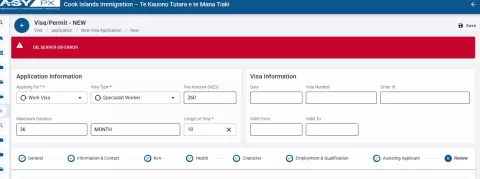
It means that you have exceeded the required number of characters within a field somewhere in the application. The common areas where this error could be occurring are "current residential address" and "applicant note".
You will need to edit the contents within the field/s to ensure they don't exceed the maximum character limit. The character count for the two fields mentioned is less than 200 characters. Other areas have smaller character limits.
If you are still having issues, please call the office and speak with an immigration officer for further support.
Why I am seeing an error message when processing a payment by credit card?
When submitting an application through ASYPX, you may come across the following error if you have attempted to make the payment more than once.
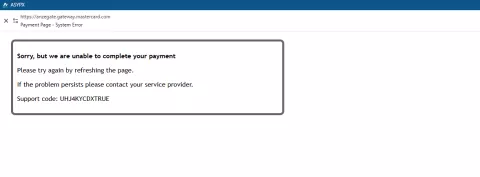
This error message means that the system requires you to refresh the application in order for it to activate the portal to the payment gateway again. Please follow the instructions below on how to do this.
- Find your application
- Click on the "3 dots" at the end of the application line to view the menu options.
- Navigate to and click on "Amendment"
- The application should open
- Go to the top of the window on the toolbar and click on "Amend"
- The application will save and close. The system will redirect you to the ANZ gateway to submit payment using either a credit card or debit card.
Once you have successfully processed the payment, the application status will change to "Paid for Verification" from then an officer will be assigned the application for processing.
If the problem persists, please call or email the office for further support.
How do upload a file?
To upload documents
- Navigate to the document list and attachment area at the bottom of the general tab.
- From the selection box, find the file type you are uploading
- Next, click on file input and search your computer for the file you want to upload, and then click upload. (Important: the file size limit is 680K and type is PDF)
- Check the box under did you upload, once you have uploaded the file.
- Repeat the process until you have uploaded all the requirements.
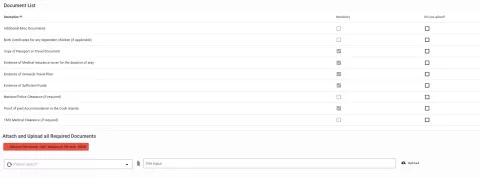
You are limited to how many documents you can upload, so please ensure that each document is submitted under the right category and is complete.
The system also requires that each document uploaded be in a PDF file and the file size be smaller than 680 kB. Click here to find instructions on how to achieve this.
I don't have a sponsorship number, what do I do?
A sponsorship number is a requirement if the applicant cannot provide satisfactory evidence of having sufficient funds.
The sponsor or applicant will need to enter the sponsorship number in the appropriate field each time a visa and permit application is created in the system.
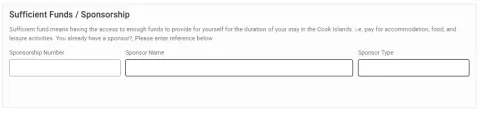
If you have completed a sponsor application form previously with Cook Islands Immigration and don't have a sponsorship number, please contact the office on visapermit@mfai.gov.ck for assistance.
What is the difference between New and Renewal?
Some visa types have been categorised into two types: New and Renewal.
For example, if you are submitting a new application for a worker entering the country for the first time or if you change your employer and/or sponsor.
You would select one of the following options depending on the validity period you require.
- International Worker 1 Year - New
- International Worker 2 Year - New
- International Worker 3 Year - New
If you are renewing an existing visa and permit, you will select one of the following options.
- International Worker 1 Year - Renewal
- International Worker 2 Year - Renewal
- International Worker 3 Year - Renewal
An international worker is a private sector employee, and a government worker is a public sector employee.