

Cook Islands Immigration
Immigration FAQs
Find answers about visas, permits, residence, sponsorship and visiting the Cook Islands.
21 answers in 1 topics
Online application help
ASYPX application helpWhy am I receiving this error message "DB-SERVER-DB-ERROR"?
If you see the following error message when trying to save or submit an application.
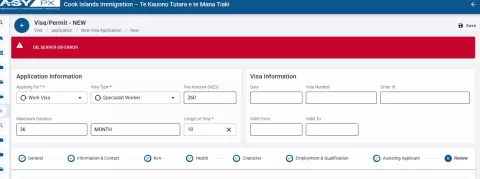
It means that you have exceeded the required number of characters within a field somewhere in the application. The common areas where this error could be occurring are "current residential address" and "applicant note".
You will need to edit the contents within the field/s to ensure they don't exceed the maximum character limit. The character count for the two fields mentioned is less than 200 characters. Other areas have smaller character limits.
If you are still having issues, please call the office and speak with an immigration officer for further support.
Why I am seeing an error message when processing a payment by credit card?
When submitting an application through ASYPX, you may come across the following error if you have attempted to make the payment more than once.
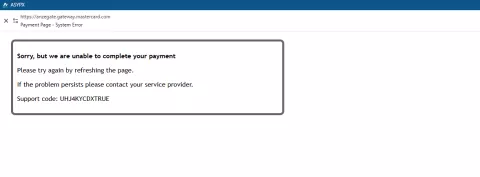
This error message means that the system requires you to refresh the application in order for it to activate the portal to the payment gateway again. Please follow the instructions below on how to do this.
- Find your application
- Click on the "3 dots" at the end of the application line to view the menu options.
- Navigate to and click on "Amendment"
- The application should open
- Go to the top of the window on the toolbar and click on "Amend"
- The application will save and close. The system will redirect you to the ANZ gateway to submit payment using either a credit card or debit card.
Once you have successfully processed the payment, the application status will change to "Paid for Verification" from then an officer will be assigned the application for processing.
If the problem persists, please call or email the office for further support.
What is the difference between New and Renewal?
Some visa types have been categorised into two types: New and Renewal.
For example, if you are submitting a new application for a worker entering the country for the first time or if you change your employer and/or sponsor.
You would select one of the following options depending on the validity period you require.
- International Worker 1 Year - New
- International Worker 2 Year - New
- International Worker 3 Year - New
If you are renewing an existing visa and permit, you will select one of the following options.
- International Worker 1 Year - Renewal
- International Worker 2 Year - Renewal
- International Worker 3 Year - Renewal
An international worker is a private sector employee, and a government worker is a public sector employee.
How do upload a file?
To upload documents
- Navigate to the document list and attachment area at the bottom of the general tab.
- From the selection box, find the file type you are uploading
- Next, click on file input and search your computer for the file you want to upload, and then click upload. (Important: the file size limit is 680K and type is PDF)
- Check the box under did you upload, once you have uploaded the file.
- Repeat the process until you have uploaded all the requirements.
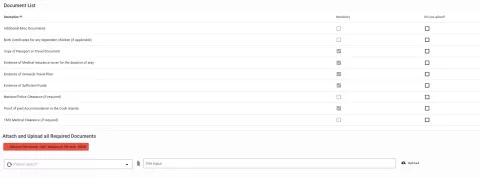
You are limited to how many documents you can upload, so please ensure that each document is submitted under the right category and is complete.
The system also requires that each document uploaded be in a PDF file and the file size be smaller than 680 kB. Click here to find instructions on how to achieve this.
How do I edit an application, that I have saved?
Applications can be saved throughout the process, right up until you submit and pay.
To edit a saved application
- Find the application you want to complete in your dashboard under “Find Visa Application.”
- At the end of the line there are 3dots (menu)
- Click on the 3dots and navigate to submission.
- The application opens and is now editable.
I received a verfication error when completing the user registration form.
The error message you have received may be because you haven’t validated your email address.
To validate your email address, the following instructions should help.
- Enter your email address.
- Next to your email address, you will see the shield icon next to the X.
- Click on the shield icon
- A new window will appear called “confirmation code”
- The system will automatically send you an email to the address provided with your confirmation code.
- Keep the window open, and then go to your email
- Find the email with the confirmation code and enter it into the “confirmation code” window that you left open
- If the code is correct, the box around the email address will turn green.
Now complete the remainder of the fields, click submit, and then confirm.
Invoice Payments - How to upload confirmation of payment?
If you have an open invoice within the visa system, you must upload confirmation of the deposit made. Once uploaded, an officer can verify the deposit and then commence the visa application review.
Here are some simple instructions on how to do this.
- From your dashboard, navigate to “find invoice”
- Find the invoice you have paid.
- Next, click on the 3 dots at the end of the invoice line.
- Next, navigate to “submit payment”
- Select “remittance” from the drop-down list under browser and upload all needed documents
- Click on “file input” navigate to where you have saved the remittance on your computer, and click “upload”
- Navigate to the top of the screen and click on submit, and then confirm
- The remittance will be uploaded and ready for immigration verification.
Importantly, you need to ensure that the remittance slip is in PDF format.
I don't have a sponsorship number, what do I do?
A sponsorship number is a requirement if the applicant cannot provide satisfactory evidence of having sufficient funds.
The sponsor or applicant will need to enter the sponsorship number in the appropriate field each time a visa and permit application is created in the system.
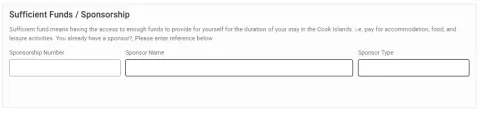
If you have completed a sponsor application form previously with Cook Islands Immigration and don't have a sponsorship number, please contact the office on visapermit@mfai.gov.ck for assistance.
Can I pay by bank deposit?
Yes, for those registered sponsors, if you opt to pay by invoice, the system will redirect you on submission of the application to the invoice creation screen. There you will create your invoice for payment.
The invoice line (visa application) will automatically appear for every application that you currently have pending payment by invoice.
Once you submit, the system will generate the invoice for download and send a copy to your nominated email address.
How do I know if my credit/debit card payment was accepted?
Asypx will generate a receipt for credit/debit card payments that will be available for download from the system, it will also be emailed to your nominated email address.
What type of credit/debit cards are accepted?
ANZ payment portal accepts credit/debit cards that display the Visa or MasterCard symbols.
How do I pay for my application?
Credit and debit card payments are accepted when submitting an application through Asypx. This process is managed by ANZ Bank, you will be redirected to the payment portal once you have successfully submitted the application.
Complete the onscreen prompts. Once payment has been accepted, the system will generate a receipt for download and will also send a copy to your nominated email address.
How can I change the file type and size of my documents to upload into Asypx?
If you have a PDF converter and compressor installed on your computer, you can use it to change the file type and size, just follow the on screen prompts. Alternatively, follow our step by step process for using a free online file converter and compressor by clicking on this link. File Compression and Converter
Why can't I upload a document into my application?
Asypx will only accept documents that are uploaded in PDF format, with file sizes that are smaller than 680k. Please check that your file type and size fit within the system requirements.
What do I do if I encounter an error while using the system?
Try refreshing the page or logging out and back in. If the problem persists, please contact Immigration for assistance.
Is my data secure when using the online system?
Yes, all data transmitted through our online system is encrypted and stored securely in our data servers.
How do I update my account information?
To update your account information, sign in and navigate to your profile settings under the "My Account" tab in the left side user menu. Here you can edit your personal details and save any changes.
How do I reset my password?
If you have forgotten your password and want to reset it, you can do this from the sign-in window, by clicking the "Forgot Password" link and following the prompts to reset your password.
If you have logged in successfully and want to change your password, the following instructions will help guide you.
- From the dashboard screen,
- Navigate to the top right-hand corner of the dashboard, click on your initials
- Navigate to "Change Password."
- A new window will appear.
- Enter your current password and then your new password twice.
- Click submit to confirm the change of password.
How do I find specific features within the system?
Once logged in, you will see the user dashboard, this area shows you all the areas that you can access within the visa and permit system. Including creating visa applications, invoices, sponsorship applications, and viewing system notifications.
How do I log in?
To log in, visit our website www.mfai.gov.ck/immigration and click the "Asypx Visa and Permit System" button. Once you arrive at the login screen, click "sign in" and enter your username and password. If you don't have an account, you can create one by clicking on "user registration".
What is the purpose of the visa application system?
Our online system has been designed to modernise the visa and permit application process for immigration services in the Cook Islands.
Still need help?
Contact Immigration if you cannot find the answer to your question.
Contact Immigration